
xHarbour developers use CVS ( Concurrent Versions System ) as their version control system for the source code of the xHarbour compiler and it's contributions. All source code files are saved on the CVS servers from SourceForge.
This is a short guideline on how to connect to xHarbour's CVS and how to retrieve all files from CVS.
IMPORTANT: It is strongly encouraged to ONLY use STABLE xHarbour builds if you want to develop end-user applications with xHarbour. Stable builds are available from the download page. Building xHarbour from CVS code can result in a unstable xHarbour, and therefore, a unstable end-user application if compiled with the unstable xHarbour. The code that is on CVS is ONLY for developers who are developing xHarbour itself. You have been warned ;-)
Mostly used CVS client tool used by the xHarbour developers is "Tortoise CVS". It's a freely available CVS clients under the GPL license. Tortoise CVS can be downloaded from their web pages at http://www.tortoisecvs.org. Be sure to always use the latest of Tortoise. BTW, this is true for ALL the tools you use. ALWAYS use the latest stable versions.
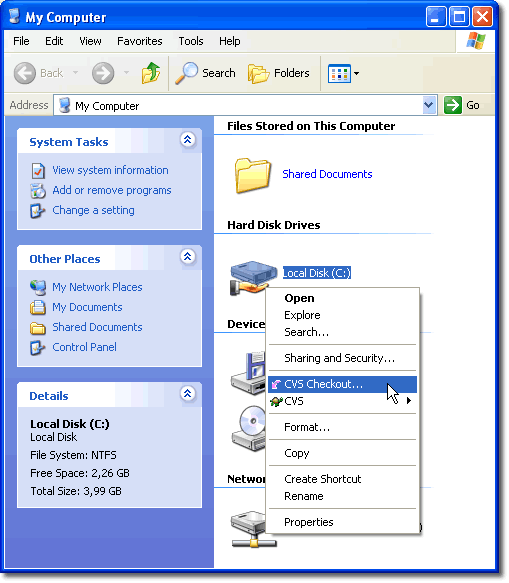
When you have installed Tortoise, open up your "My Computer" and right click on the drive where you want to save the xHarbour source files. The Tortoise menu will appear. Now click on "CVS Checkout".
Tortoise will pop up a "Checkout Module" dialog. Fill in all the fields like this:
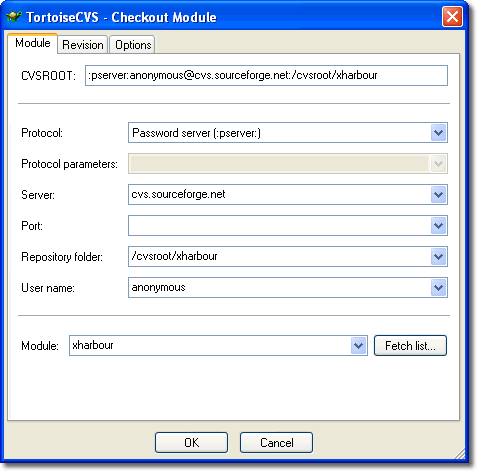
Click on "OK" to start retrieving all xHarbour source files from SourceForge's CVS servers.
If you want to update your xHarbour source directory at a later time, open up Windows explorer or any of your favorite file management tool. Go to the drive where the xHarbour directory is located, and right click on it.
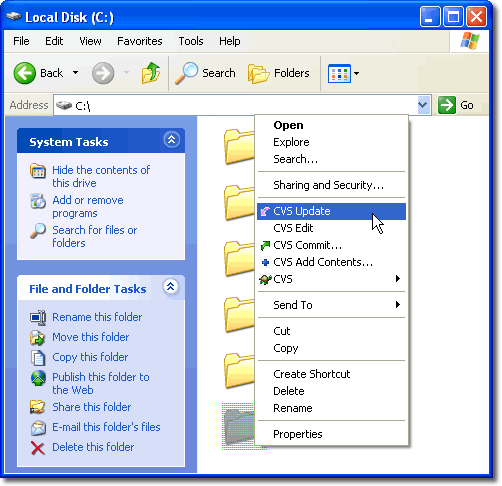
Choose "CVS Update" to get the latest xHarbour source files from CVS.